Eleyo uses a Single Sign On (SSO). That enables you to log into any location that uses Eleyo with the same the login credentials. When creating an account, a unique email address is needed. If you would like to change the email you use to access your district or program's Eleyo website or other contact information for your account, please follow the instructions below. Note: Changing any details including the email will update that information for any Eleyo site you're logging into.
To complete these steps, you will need the Eleyo website URL for your school or district. If you do not have the website URL, please contact your district or school representative.
1. Once you have navigated to the URL, select Sign In in the upper-right of the screen.
The Eleyo Sign In Screen is displayed.
2. Sign in with your current account email and password.
The school or district's home page is displayed.
3. Select your name in the upper-right.
User options are displayed.
User options are displayed.
4. Select Your Account / Relationships.
5. For your profile, select Edit.
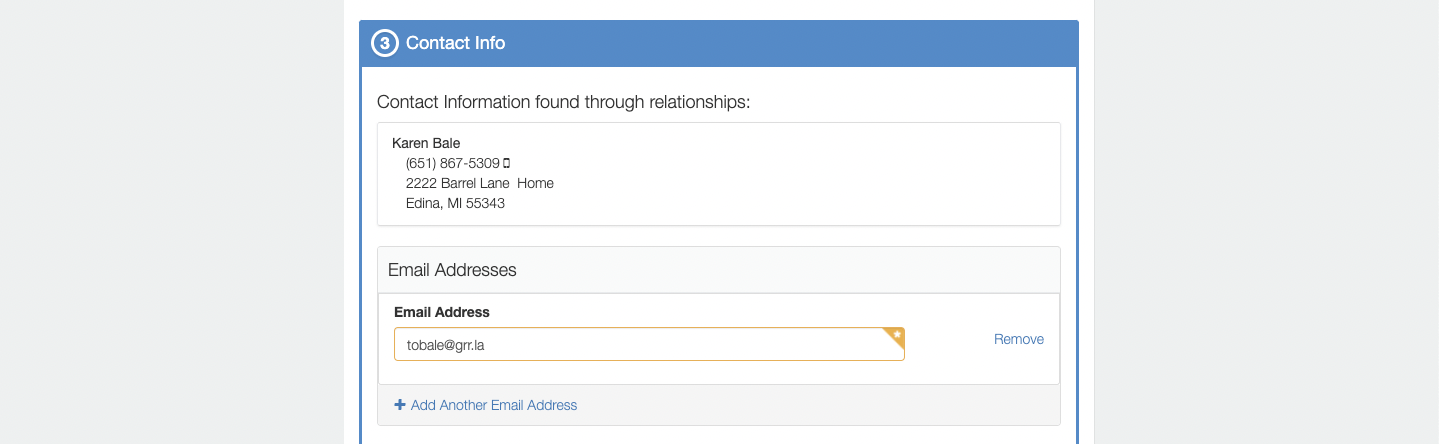
6. Scroll to Contact Info and update your email address or any other details. If you have a cell phone number listed and need to receive emergency text communications from the program, please ensure the Allow us to send you Text Messages (SMS) is set to Yes.
7. Scroll to the bottom and select Update Person.
Your account profile is displayed with an Updated Successfully message.